Search Files
Press Ctrl twice to open the Listary launcher, and simply enter the keywords to find files.
If you need to search files more deeply, you can click the Listary tray icon at the bottom right of the desktop, or use a custom shortcut key to open the File Search Window (which can be set by right-clicking the Listary tray icon -> Options -> Hotkey).
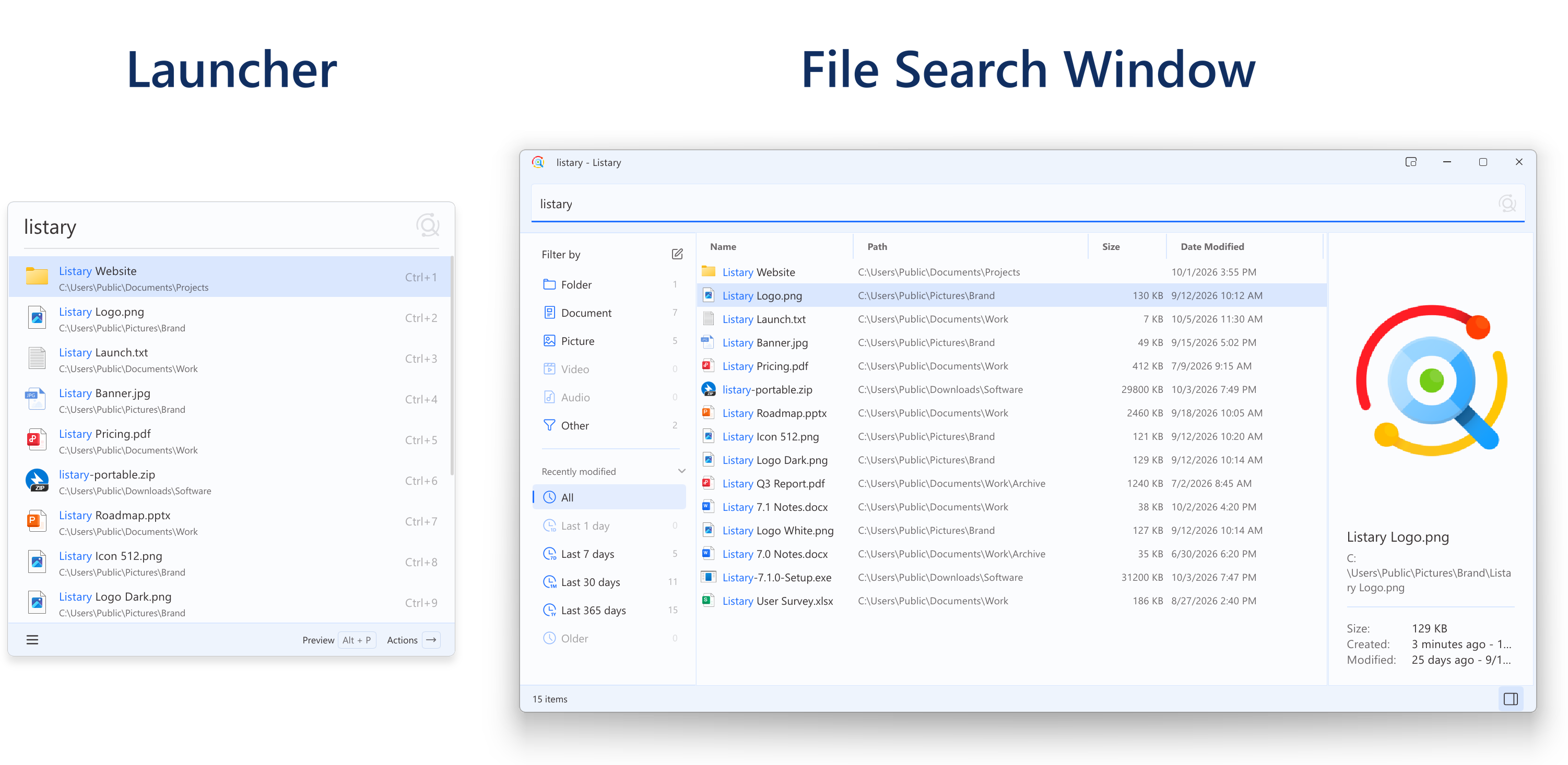
🚀 Search in milliseconds: Search within 0.01 seconds. Show results as you type.
❤️ Search your online drive: Easily search network drives or shared folders with real-time indexing, and search results are displayed instantly without any waiting.
⚡ Prioritize results according to your habits: Listary learns to rank the results more intelligently with usage.
🔷 Fuzzy matching: Only a part of the keyword is needed to get search results.
🔥 To optimize your productivity, Listary provides many advanced features. Click the options below to learn about each feature's functionality and settings in detail.
Using Deep Search
Deep search files with a larger window. View more results and refine your search with filters.
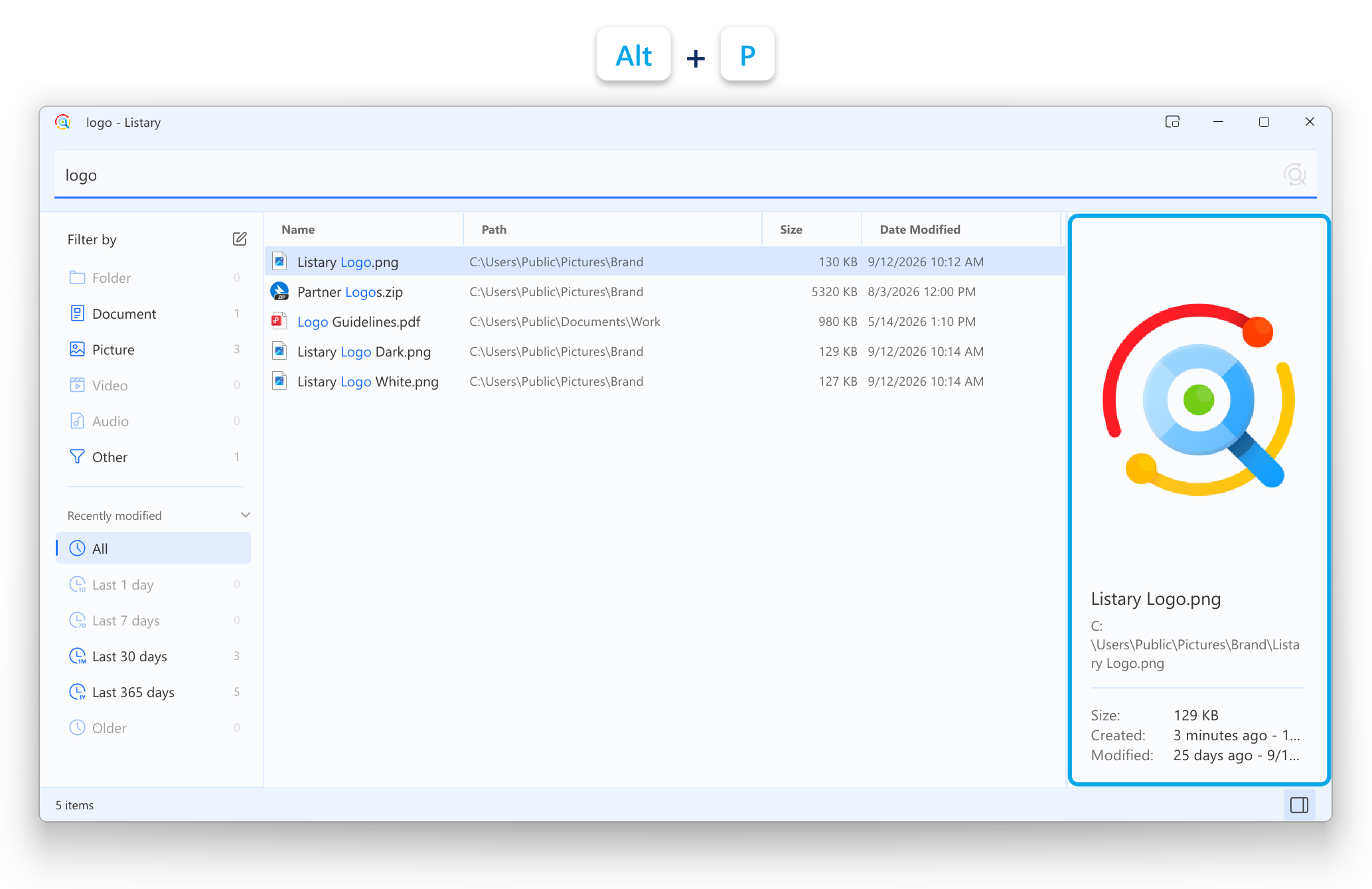
While the launcher helps you quickly open files and applications, the File Search Window is better suited for deep file searching. With a larger window, you can easily view more search results at a glance, apply filters to narrow results by type, modification date, and other criteria, and keep the window open to conveniently compare multiple results.
To open the File Search Window, press Ctrl twice again in the launcher, click the Listary tray icon, or use the Show File Search Window hotkey set in Options -> Hotkey.
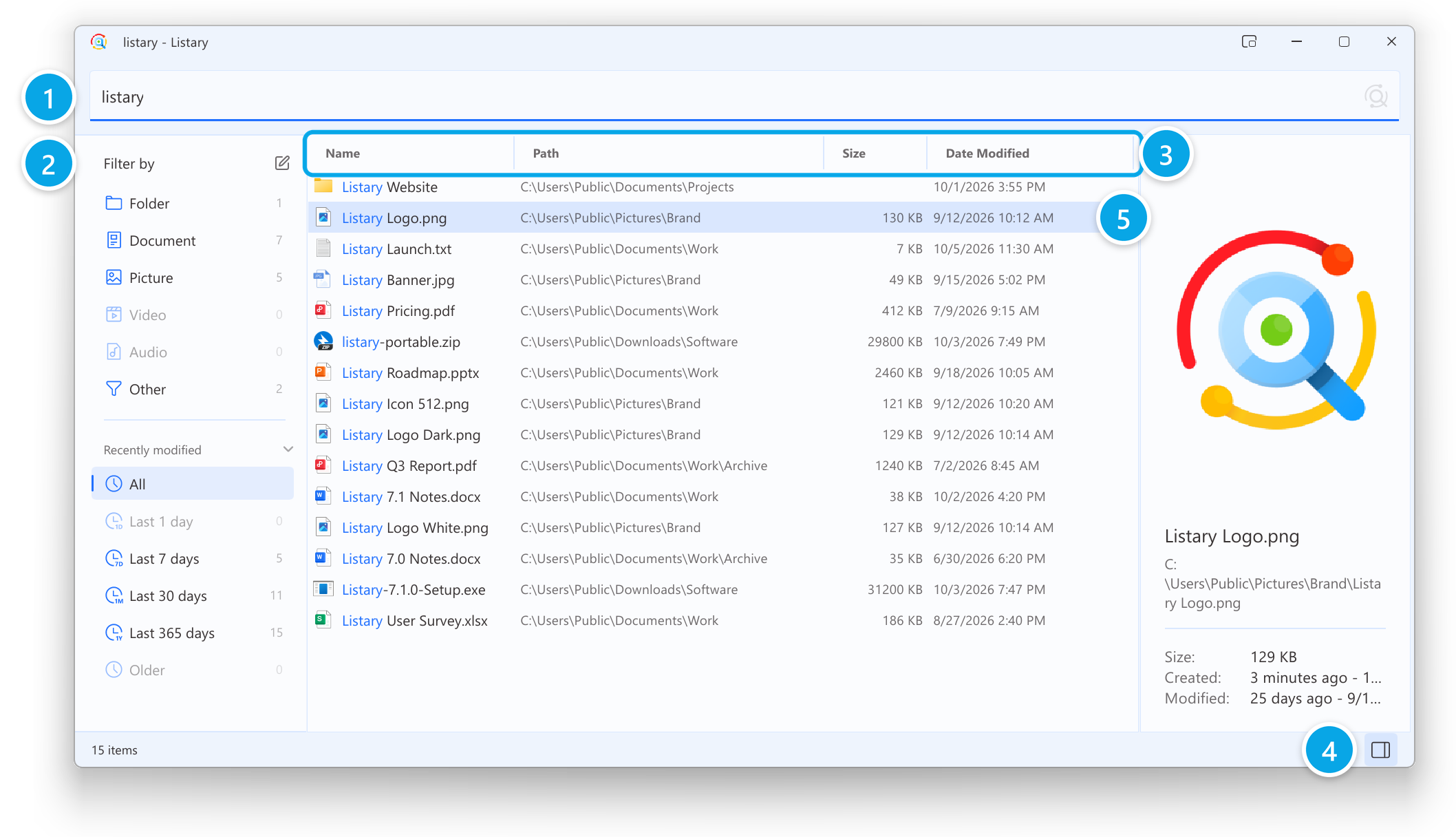
- Enter keywords in the search box. The number of results is shown at the bottom of the window.
- Use the filters on the left to narrow results by type or recently modified time.
- Click a column heading (Name, Path, Size, Date Modified) to sort; click it again to reverse the order.
- Select a result to see it in the preview pane. The button in the bottom-right corner shows or hides the pane.
- Press
Enterto open the selected result, or right-click it for more operations.
Index Scope
By default, Listary will search all local NTFS formatted disks. You can also manually add a network drive or local folder.
Set up Index Scope
Right-click the Listary tray icon and go to Options -> File Search -> Index.
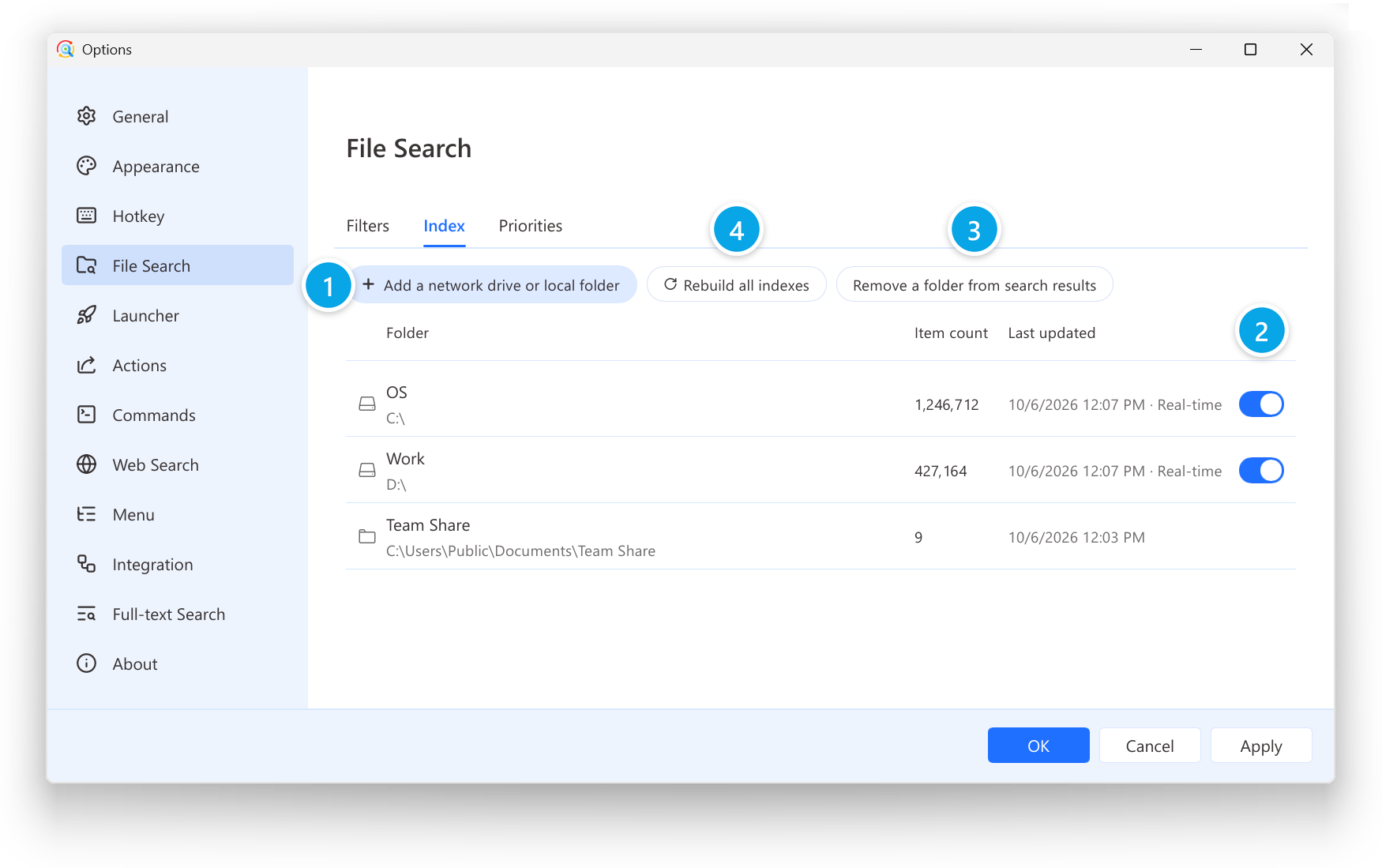
- Add a network drive or local folder (Pro feature): Search through cloud storage, network drives, shared folders, etc.
- Remove an entire disk from search results: for example,
C:\. - Remove a folder from search results: for example,
C:\download. - Rebuild index: troubleshooting usage, usually unnecessary to click.
Fuzzy Matching
Listary supports fuzzy matching and also Chinese Pinyin. Therefore, you can find the files using only abbreviations without knowing the whole filename.
Example:
- Abbreviation:
vs(Visual Studio) - Chinese, Pinyin, or initials:
安装包、anzhuangbao、azb - Different order:
install Listary,Listary install
Abbreviations such as vs currently only find apps and recently opened files. Chinese, Pinyin, and initials work for all files.
Characters that look alike
From Listary 7.1, characters that look alike find each other, so you don't have to type a name exactly the way it's written:
- Full-width letters and digits, such as
abcor123, are found by typingabcor123. - A character written as a radical, such as
⻄, is found by typing西or its Pinyin. - Hiragana and katakana find each other, so
ひらがなfindsヒラガナ. Half-width katakana also matches full-width katakana. - Characters such as
²and①match2and1. - Letters such as
Ł,Ø,ĐandĦare treated asL,O,DandH, so typinglodzfindsŁódź.
You don't need to rebuild the index for this.
To find files by their contents, see Full-text Search.
Using "Path" to narrow search results
Easily refine your search by appending a trailing \ to any keyword, indicating it's part of the parent folder path. This can be used at any point in your search query.
Example:
Search for notepad.exe within Windows folder:
- win\note
- win\ note
- note win\
Search for Photo.jpg within My Documents folder:
- photo doc\
- doc\photo
Search for Photo.jpg within drive D:\:
- d:\photo
- d:\ photo
- photo d:\
Use the backslash \ for path matching; otherwise, Listary will treat it as a search query.
Using "Filters" to narrow search results
"Filters" can help you select specific file types, quickly and precisely pinpointing the target file.
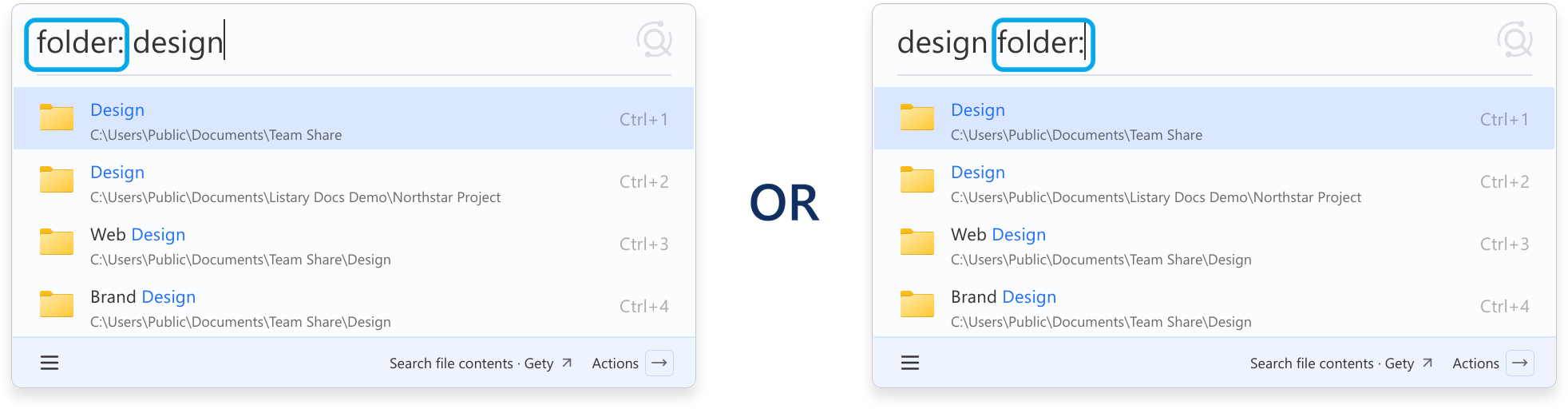
Listary has some built-in filters:
| Keyword | File Type |
|---|---|
folder: | Folders |
file: | Files |
doc: | Documents |
pic: | Pictures |
video: | Videos |
audio: | Audio |
The filter can go before or after your search words, with or without a space: folder:listary, folder: listary, and listary folder: all work.
To add, delete, or modify items or set hotkeys, refer to the filters.
Listary v7 also supports combinations of extensions, dates, sizes, exact phrases, and exclusions. See the advanced search syntax reference for details and examples.
Preview
Use Alt+P to preview.
Actions
Select (Highlight) a search result and open the action menu with Ctrl+O or → or mouse right-click.
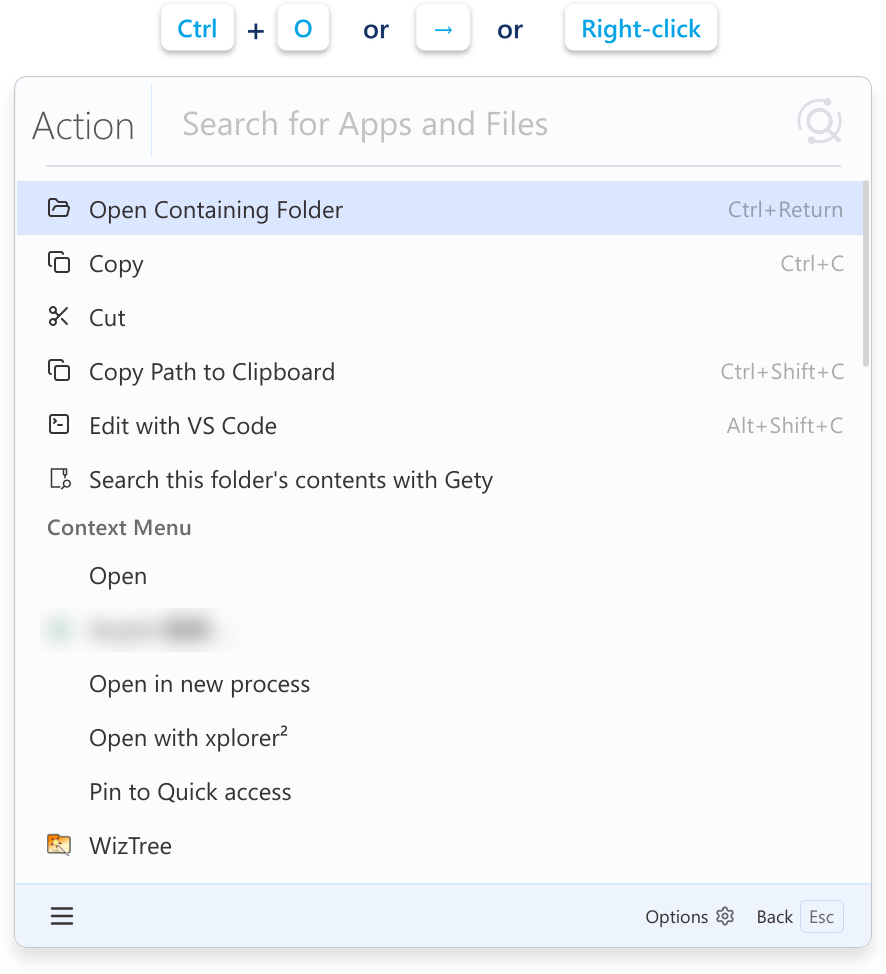
Listary has some built-in actions:
- Open containing folder
- Copy / Cut / Delete
- Copy path to clipboard
- Edit with VS Code
- Search this folder's contents with Gety
- (All Windows Context Menu)
To add, delete, or modify items or set hotkeys, refer to the actions.
Optimize efficiency
⌨️ Keyboard Accessibility:For extreme efficiency, all Listary commands can be done via the keyboard.
🖱️ Mouse-Friendly:Prefer a GUI? Use the mouse for all operations without memorizing shortcuts.
- Launch Listary:
Ctrl+Ctrl - Open file:
Enter - Open containing folder:
Ctrl+Enter - Browse up and down:
Ctrl+PandCtrl+N - Preview:
Alt+P - Use actions:
Ctrl+O