Install and Launch
Listary's core features are ready to use after installation. You can enjoy the convenience and speed of Listary without any additional setup.
Download and Installation
You can download the latest version of Listary here (Windows 7 and Windows XP users click here to download Listary 5).
After installation, a "Welcome to Listary" window opens. It shows the two ways to get started: click the tray icon to open the File Search Window, or press Ctrl twice to open the launcher. It also shows the indexing progress. To open this window again later, right-click the Listary tray icon and choose "Tutorial".
Launch Listary
You can use Listary in any of the following five ways:
🔷 Global Search – Launcher (Quickly launch files or applications)
- Press
Ctrltwice
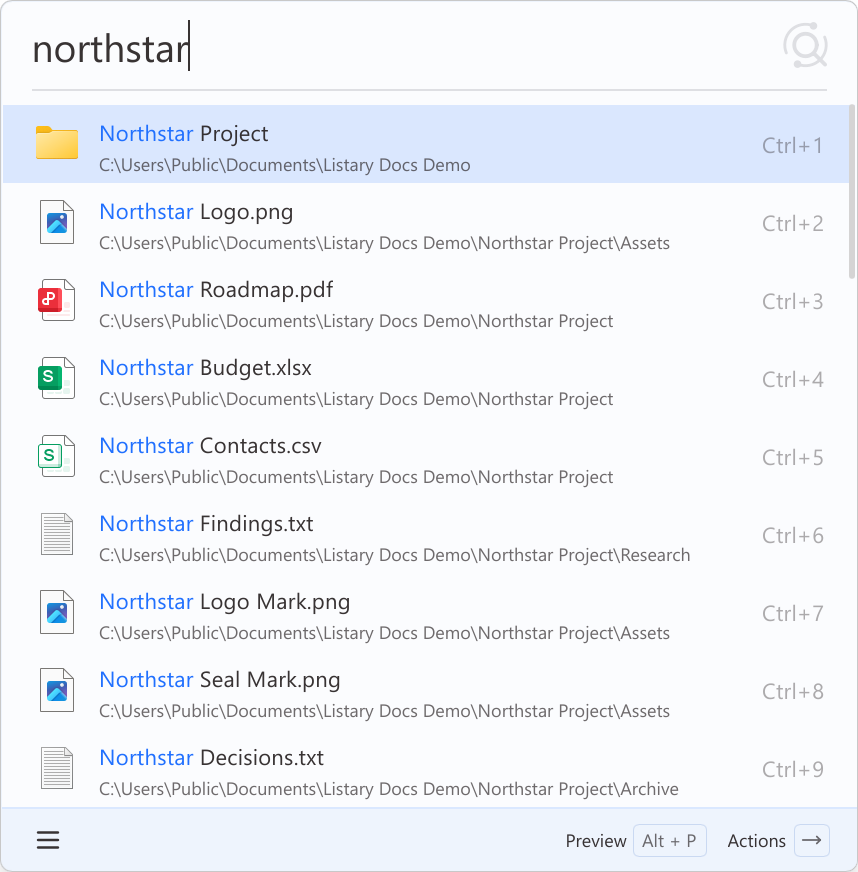
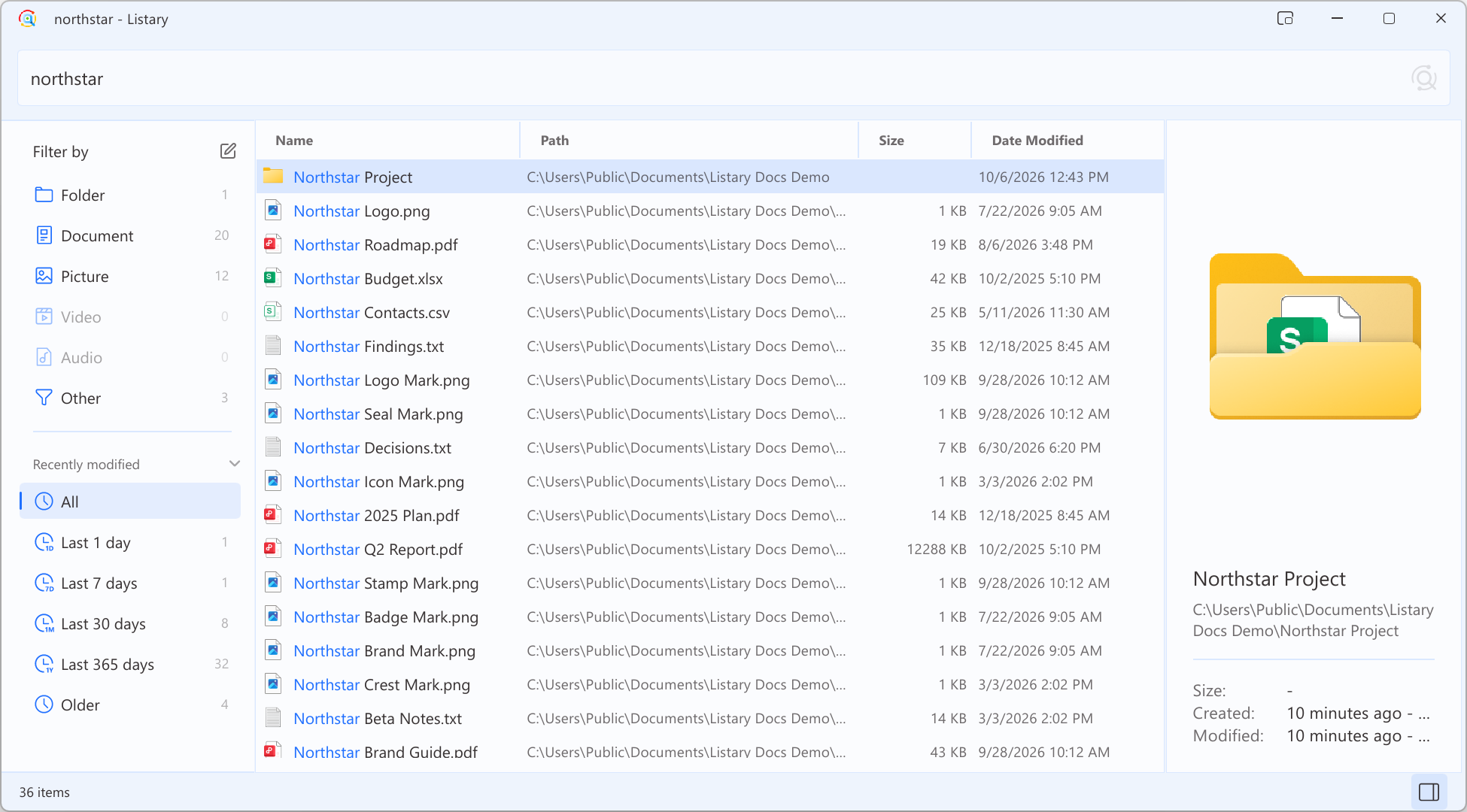
🔷 Global Search – File Search Window (Deep File Search)
- Single-click the Listary tray icon at the bottom right of the desktop.
- Quickly open the File Search Window using a shortcut key (can be set via right-clicking the tray icon -> Options -> Hotkey).
- Switch from the launcher to the File Search Window (by Press
Ctrltwice in the launcher).
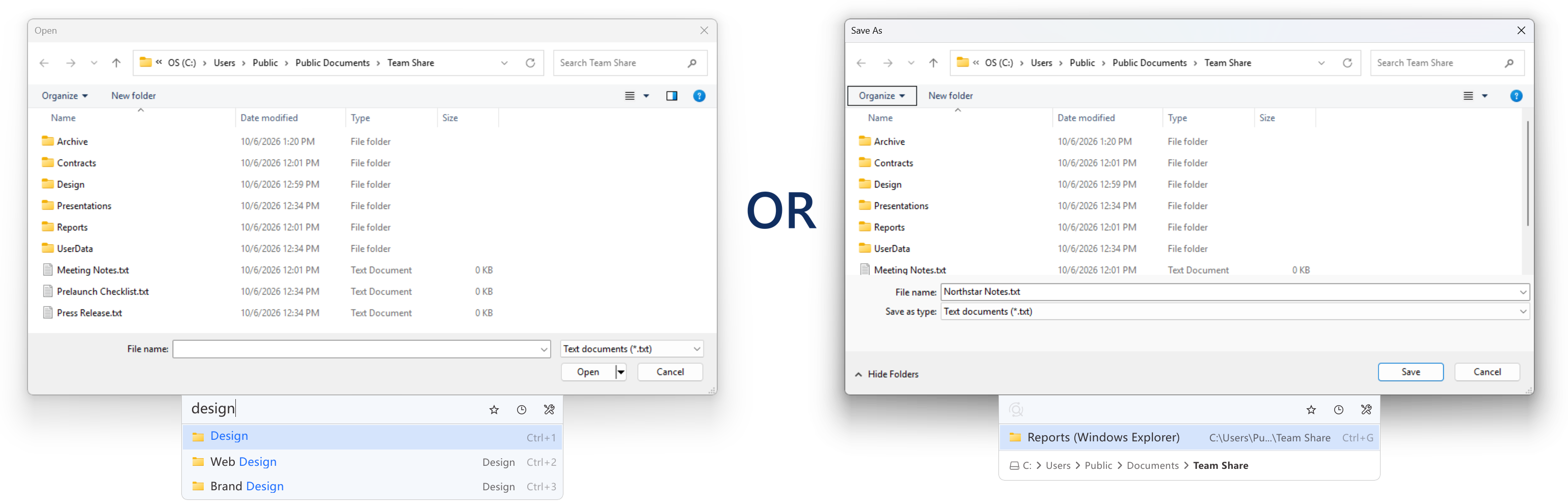
🔷 Quick Switch (Search within Windows File Dialog)
- Listary's quick switch window will automatically pop up when you open a Windows File Dialog.
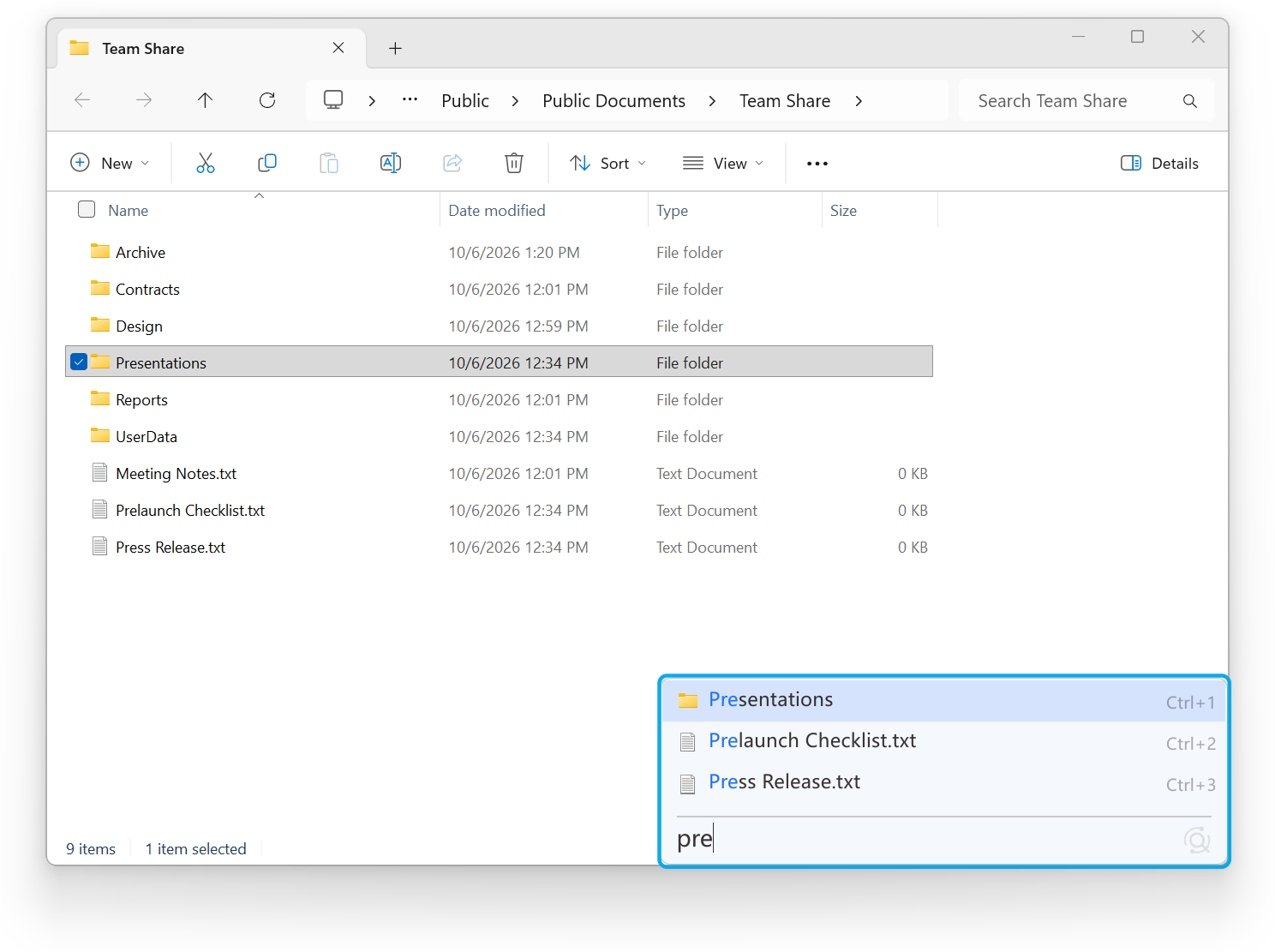
🔷 Search within Windows File Explorer
- Type directly in Windows File Explorer to search using Listary.
🔷 Use Popup Menu within Windows File Explorer
- Mouse Double-click in empty area
- Mouse middle-click
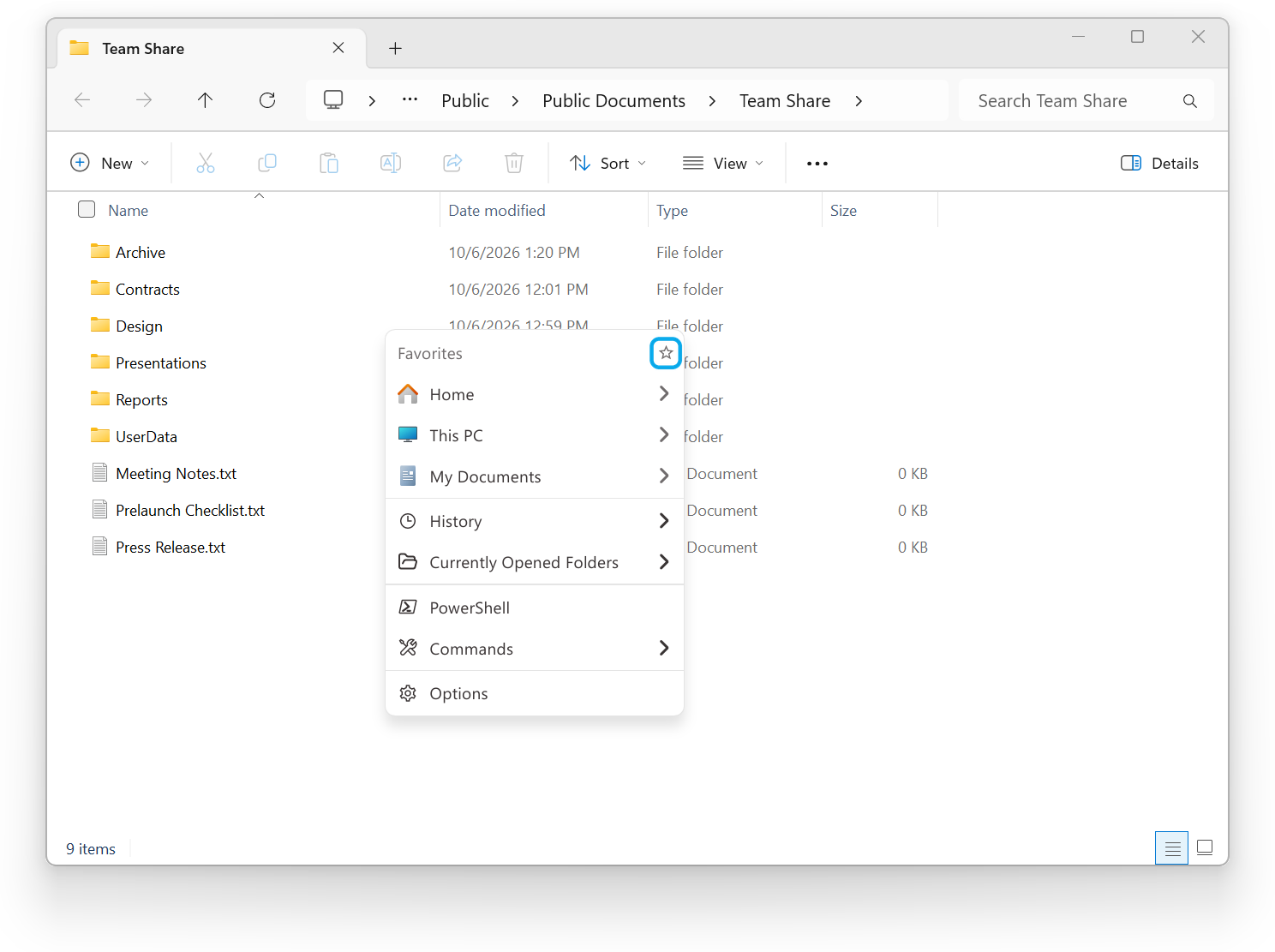
Besides Windows File Explorer, Listary also supports 3rd-party file managers. Please refer to integration for details.
You can modify Listary's launch hotkeys in hotkeys.