General Settings
Right-click the Listary tray icon and go to Options -> General
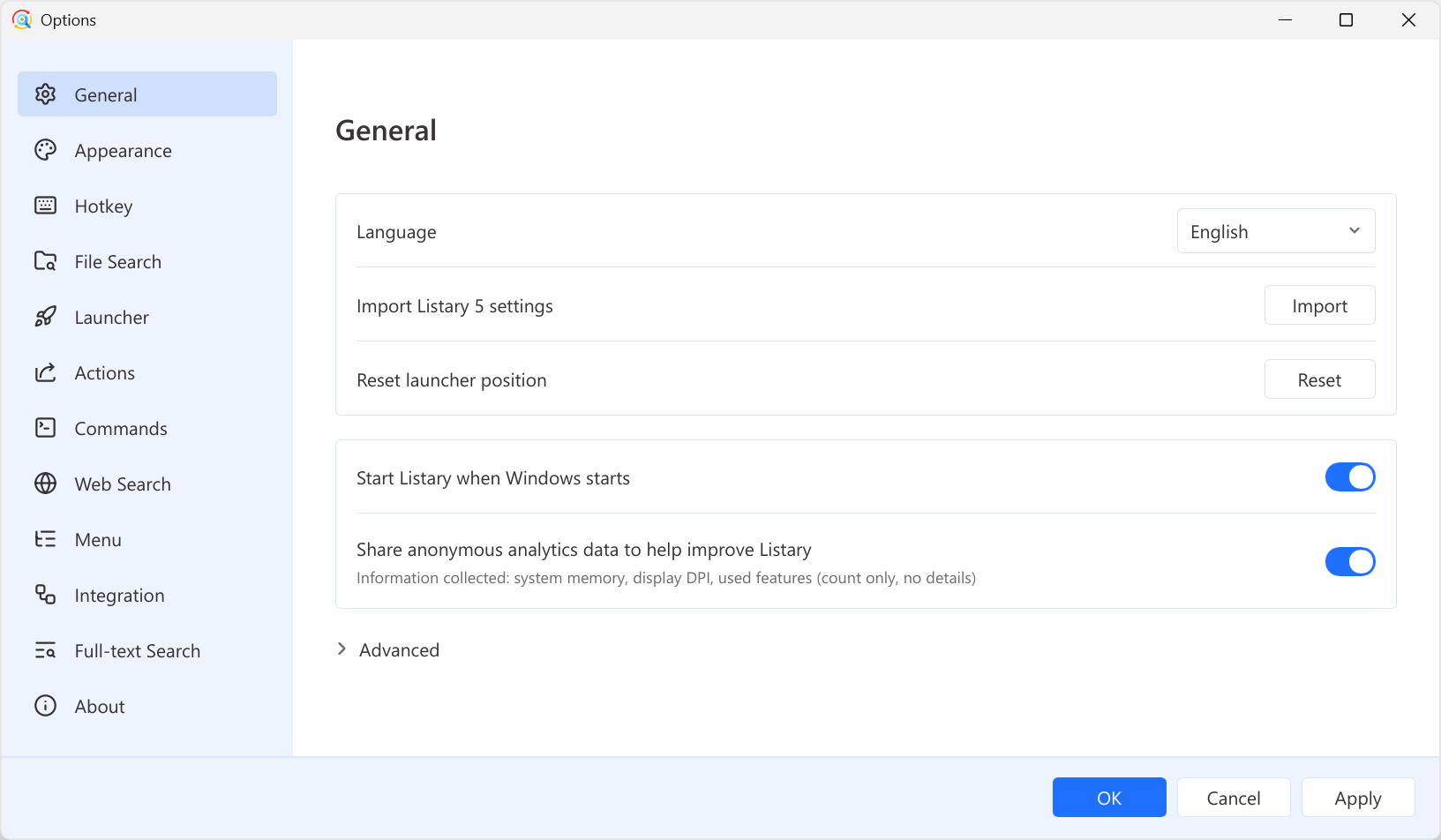
You can set up the following options:
- Language: Change the display language for Listary. This change won't affect the language support for the search function.
- Import Listary 5 settings:If you have a configuration backup file (in JSON format) of Listary 5 Settings, you can import it through the
Importbutton after installing Listary 7. - Reset launcher position:The Listary search box can remember the position you dragged last time. You can reset the search box to the default position by using the
Resetbutton. - Start Listary when Windows starts: Automatically start Listary when Windows starts.
- Share anonymous analytics data to help improve Listary: Listary will not collect sensitive personal data. Please refer to our privacy policy for more details. Information collected: system memory, display DPI, used features (count only, no details)
- Check for Updates automatically/Check for Beta Updates: Check for new versions/new beta version automatically. These options are in Options -> About.
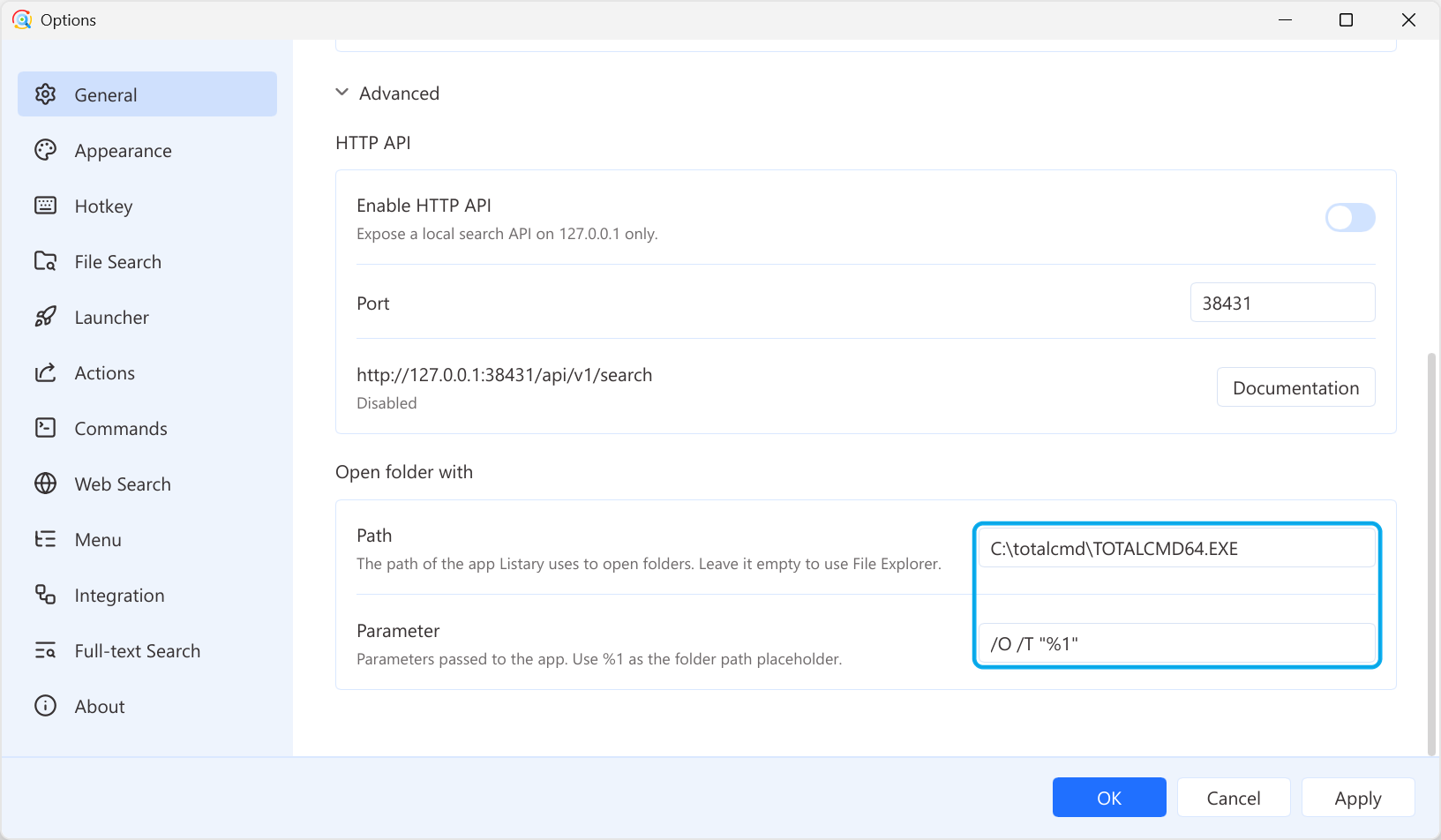
- HTTP API: Expand Advanced at the bottom of the page and turn on Enable HTTP API to provide a local search API for scripts and tools on your computer. The API is only accessible from this computer. You can change the Port if needed. Click Documentation to see how to use the API.
- Open folder with: This option is under Advanced. Listary will use Windows File Explorer by default. If you prefer using a 3rd-party file manager, specify its path and launch parameters here. Use
%1in the parameters for the folder path.
Example:
total commander can be set up like this:
- Path:C:\totalcmd\TOTALCMD64.EXE
- Parameter:/O /T "%1"
TIP
The path should be filled with the one where you have installed total commander by yourself.