Quick Switch
Quick Switch is a signature feature of Listary, enabling you to quickly jump to the target folder when saving or opening files. For example, as shown below, the "Quick Switch Window" of Listary will appear below the "Windows File Dialog" when you save or open a file. If the dialog is near the bottom of the screen, the window appears above it instead.
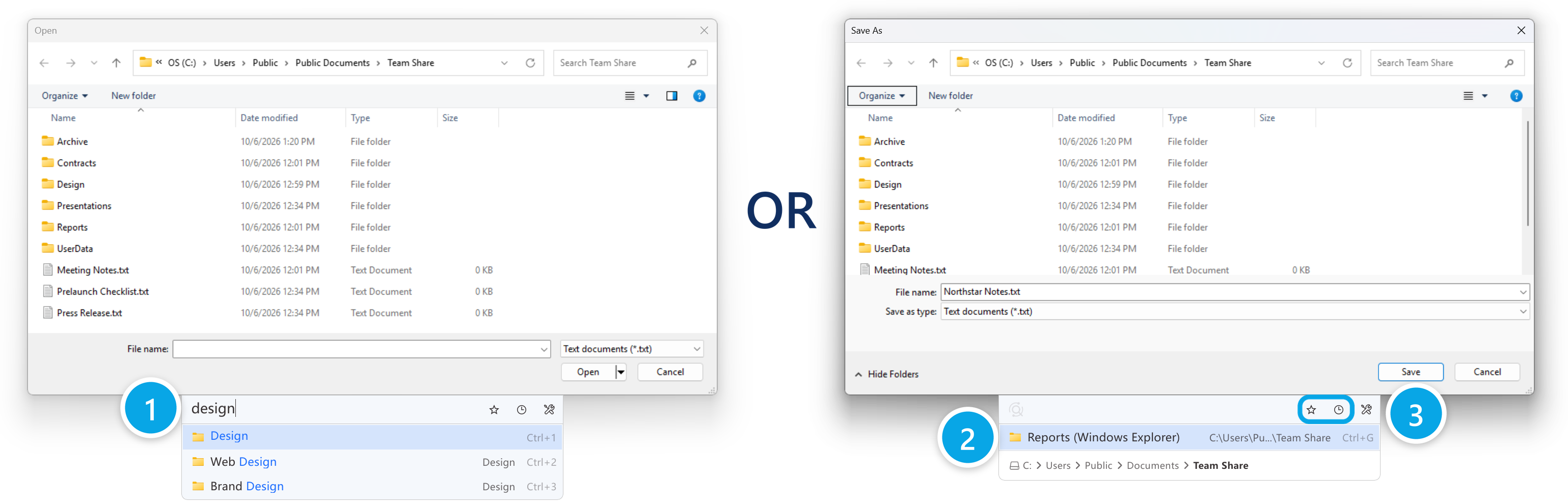
You can quickly open the target folder in the "Windows File Dialog" using the following three methods:
- Search for Folder: Use the search bar in the "Quick Switch Window" to find the folder.
- Click Suggested Folder: Listary suggests the folder that is open in your file manager right now; either click the suggestion or press
Ctrl+Gto instantly jump to it. If the dialog is already in that folder, the suggestion is hidden. - Open Favorites or History Folders: Click the icons on the right to open favorite or history folders.
You can also open the target folder in "Windows File Explorer" first, then switch to the "File Dialog" window, and it will automatically jump to the target folder.
In a file dialog, the popup menu also has Commands > Switch to Last Opened Folder in File Manager, which does the same jump. This item only appears in menus opened from a file dialog.