Hotkey
Right-click the Listary tray icon and go to Options -> Hotkey
For extreme efficiency, all Listary commands can be done via the keyboard. Hotkeys can help you avoid the operational costs of constantly switching between the mouse and keyboard.
Most hotkey combinations in Listary support customization. You can set hotkeys separately in the commands, actions, and other functions. This page only explains the options in the Hotkey.
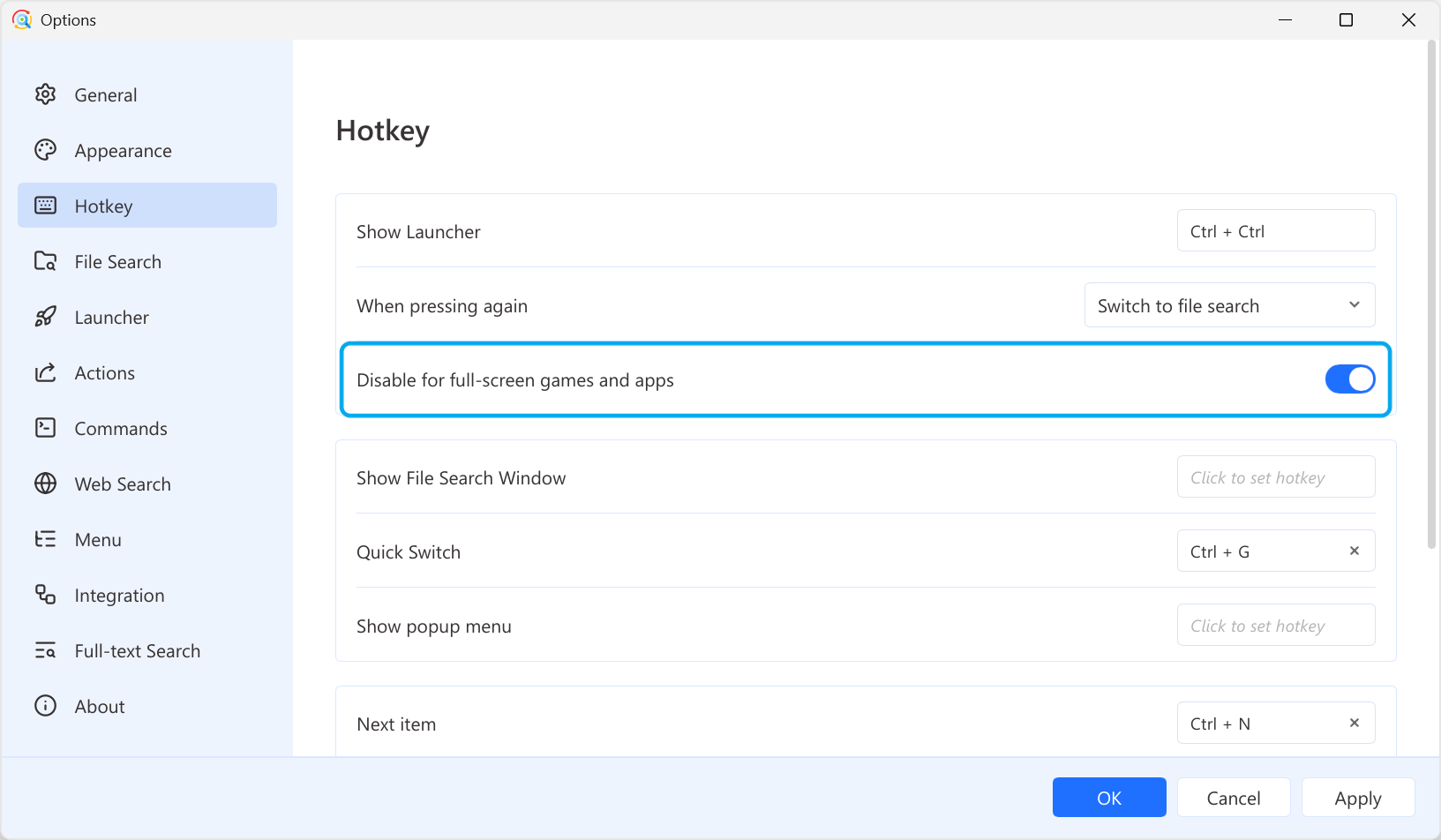
| Setting | Default Hotkey | Function |
|---|---|---|
| Show Launcher | Double-click Ctrl | Instead of double-clicking the Ctrl key, you can activate Listary with a custom hotkey. You can create an activation hotkey here if needed, and click Reset to go back to double-clicking Ctrl. When pressing again, you can set it to either 「Switch to file search」 or 「Hide Listary」. At the same time, 「Disable for full-screen games and apps」 (on by default) turns on the full - screen do - not - disturb feature. |
| Show File Search Window | \ | Pop up the File search window using a hotkey. |
| Quick Switch | Ctrl+G | Switch to the recommended folder in the file dialog box (You can also switch by clicking with the mouse). |
| Show popup menu | \ | Pop up the menu using a hotkey. |
| Next item | Ctrl+N | Browse the next item during a search. |
| Previous item | Ctrl+P | Browse the previous item during a search. |
| Preview | Alt+P | Preview files during a search. |
| Actions | Ctrl+O | Open the actions menu during a search. |