Commands
Right-click the Listary tray icon and go to Options -> Commands
What are Commands?
With Listary, you can use command-line methods to use system commands or to call any apps. For example:
Use system commands
- Use
cmd(Command Prompt) orpsh(PowerShell) to open the command line in the current directory. - Use
touchormkdirto create files or folders in the current directory. - Use
shutdownto turn off the computer.
- Use
Call other apps
- Run open/create commands in notepad.exe
- Other customized commands
Parameters supported by Listary:
"{query}": The query input after the keyword"{current_folder}": The current directory
How to use Commands?
You can use Commands in two ways: in the launcher or the Windows File Explorer.
In the launcher, Listary can use the parameter:
"{query}"In Windows File Explorer, Listary can use parameters:
"{query}"and"{current_folder}"
Use Command in the launcher
Double-click Ctrl, then enter Command keyword query in the search box and press Enter to trigger the command (you can leave the query blank).
Example 1
- Double-click
Ctrl, then entershutdownand pressEnterto shut down the computer.
This command has no parameters.

Example 2
- First add a custom command with the keyword
notepadthat runsnotepad.exewith the parameter"{query}". - Double-click
Ctrl, then enternotepad Listaryand pressEnterto open or create a Notepad document named "Listary".
parameter "{query}" = Listary

Use Command in Windows File Explorer
In the Windows File Explorer, enter Command keyword query directly and press Enter to trigger the command (you can leave the query blank).
Example 3
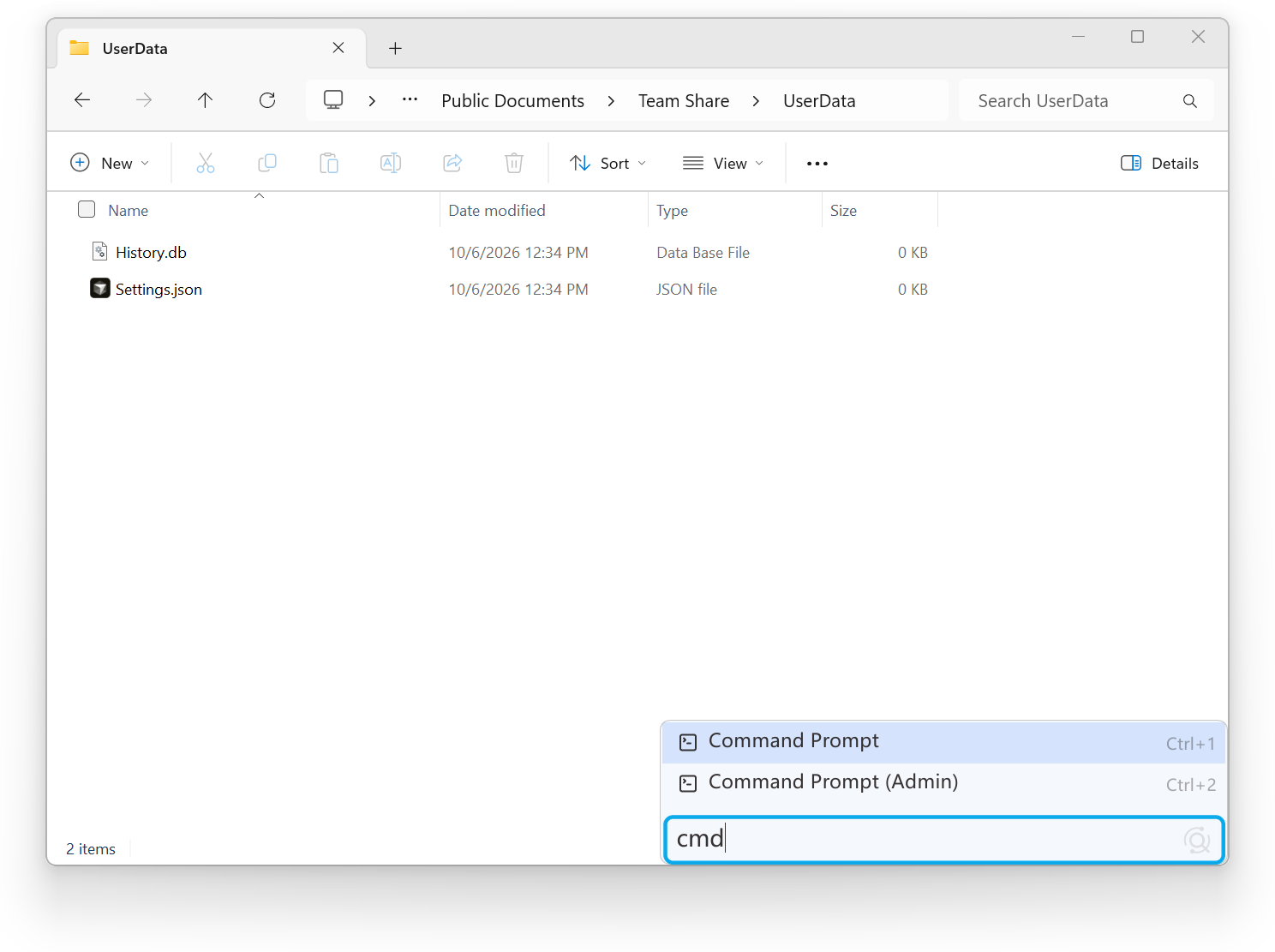
- Open the "Userdata" folder, then enter
cmdand pressEnterto open Command Prompt directly in the directory of the "Userdata" folder.
parameter "{current_folder}" = C:\Users\Public\Documents\Team Share\UserData
Example 4
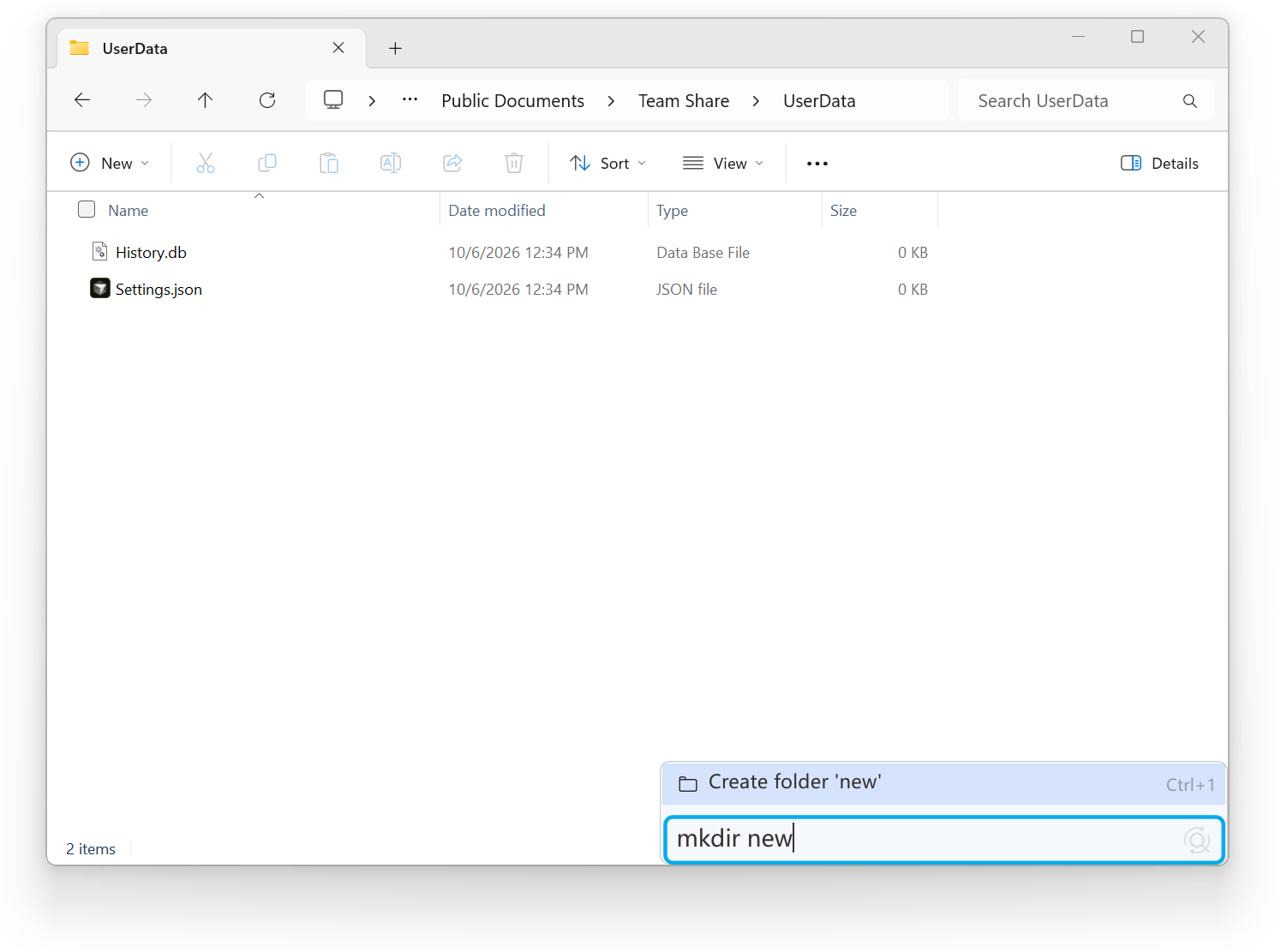
- Open the "Userdata" folder, then enter
mkdir newand pressEnterto create a new folder named "new" inside the "Userdata" folder.
parameter "{query}" = new
parameter "{current_folder}" = C:\Users\Public\Documents\Team Share\UserData
Listary built-in Commands
For your convenience, Listary has built-in some commands that you can use directly.
| Keyword | Command name | Function |
|---|---|---|
opt | Options | Open Listary Options |
rebuild | Rebuild index | Rebuild all Listary indexes |
.. | Go to Parent Folder | Go to Parent Folder (Only use in Windows File Explorer) |
mkdir | Create Folder | Create a folder in the current directory (Only use in Windows File Explorer) |
cmd | Command Prompt | open Command Prompt directly in the current directory |
cmda | Command Prompt (Admin) | open Command Prompt directly in the current directory as Admin |
psh | PowerShell | open PowerShell directly in the current directory |
psha | PowerShell (Admin) | open PowerShell directly in the current directory as Admin |
touch | Create File | Create a file in the current directory (Only use in Windows File Explorer) |
shutdown | Shutdown Computer | Shutdown computer |
reboot | Reboot Computer | Reboot computer |
uninstall | Uninstall a Program | Open the Control Panel to uninstall a program |
connections | Network Connections | Open network connections |
hosts | Edit Hosts | Open hosts with Notepad Requires write permissions |
Customize your Commands
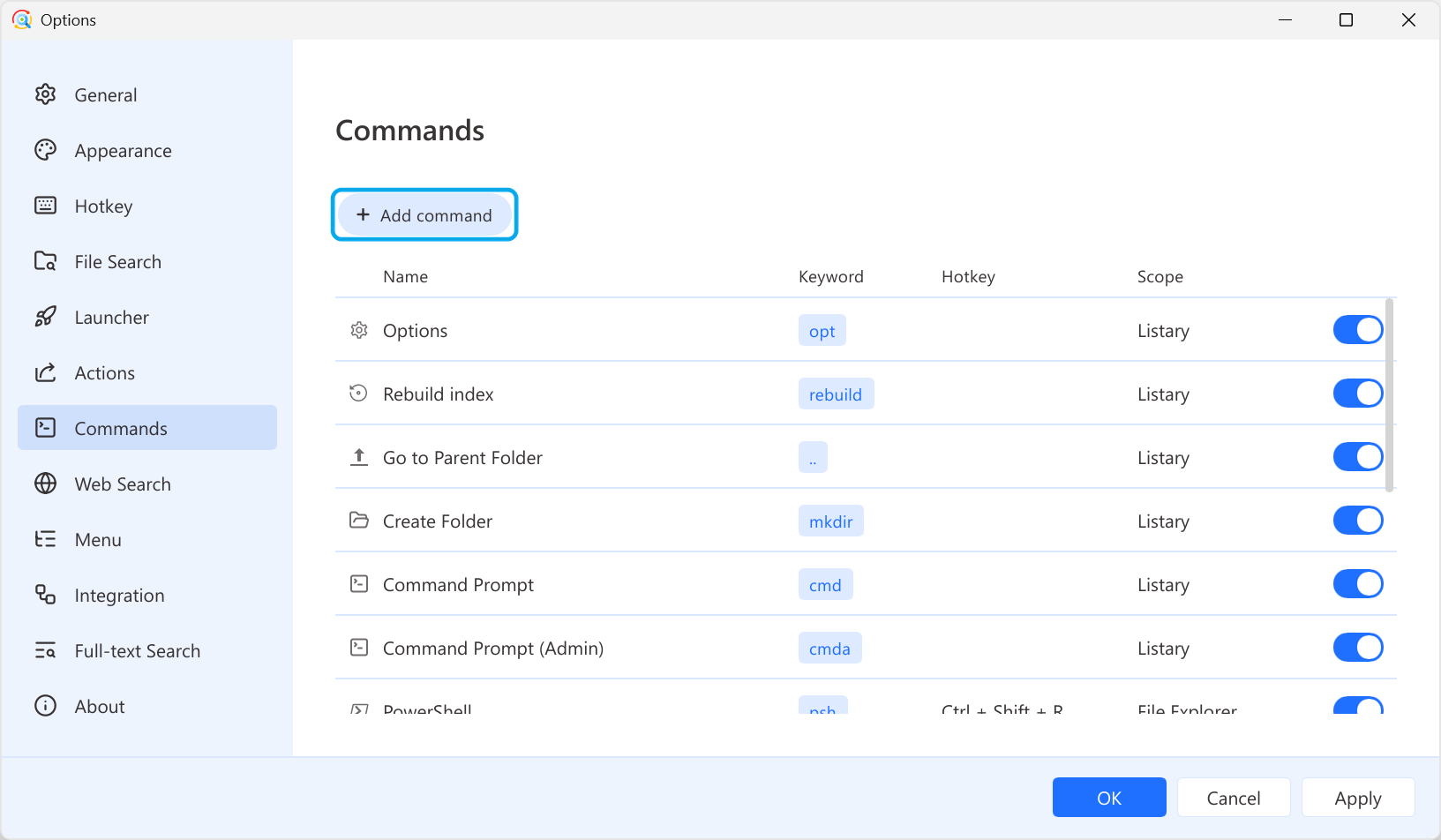
Click Add command to add, and use the switch to toggle Commands. To modify or delete, select the item and the related setting will appear on the right.
| Name | Required | Description | Example |
|---|---|---|---|
| Hotkey | No | Key combination to quickly activate this command. | Ctrl+LCtrl+Alt+H |
| Scope | No | The scope of the hotkey. |
|
| Keyword | Yes | The keyword to activate this command. | hostscmd |
| Name | Yes | The name or description of this command. | Edit HostsCommand Prompt |
| Path | Yes | The path of the program that this command calls. If the system has already been set up with the correct environment, you can directly input the program's name. | notepad.exeD:\Listary\Listary.exe |
| Parameter | No | Parameters that are used when executing this command. (Refer to the docs of the third-party software to understand which parameters can be used) Parameters supported by Listary:
| -NoExit-search "{query}" /s /t 4 |
| Working directory | No | The working directory of this command (If left blank, the default is the current directory.) | C:\Windows\System32D:\Listary |
| Switch: Run silently in the background | - | Run this command in the background. | |
| Switch: Run as admin | - | Run this command as an administrator. |
When running with administrative privileges, be mindful of the command's security due to elevated permissions. Upon command activation, based on the User Account Control (UAC) level, the system might display a dialogue box, causing brief screen dimming, blackouts, or flickering. If you wish to adjust your UAC settings, please refer to Microsoft Help.