Priorities
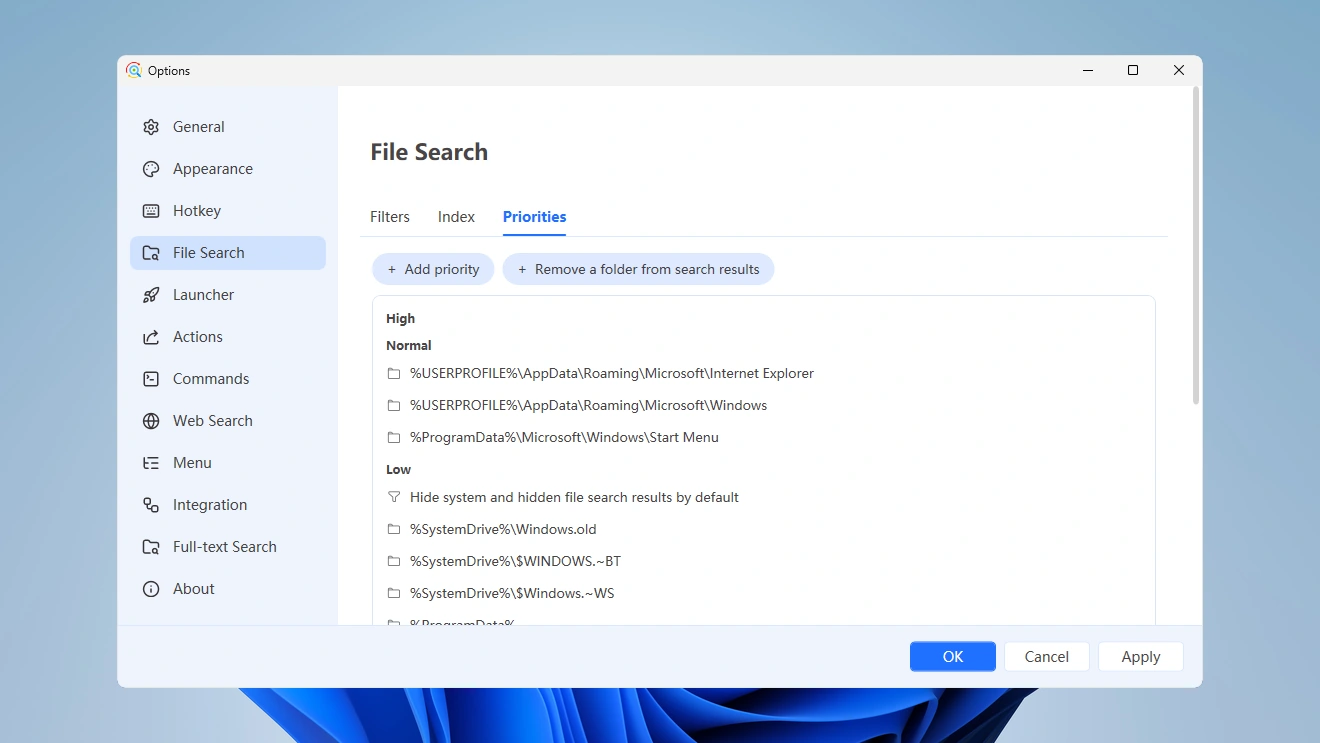
Right-click the Listary tray icon and go to Options -> File Search -> Priorities
What is Priority
Listary prioritizes results according to your habits, but you can also manually adjust the order of search results through "Priority".
Listary defines priorities as four levels: High, Normal, Low, and Do not index:
- High: Rank at the top in search results.
- Normal: default priorities for most files/folders.
- Low: Rank further down in search results.
- Do not index: Do not display in search results.
- It's highly not recommended to add, delete, or adjust the Normal and Low priority levels.
- It's not recommended to add, delete, or adjust the High priority level.
- Listary will automatically adjust result rankings based on your habits. Files you use more frequently will be prioritized higher by Listary.
- For personal privacy or files/folders you don't want to be searchable, you can set them to the Do not index level.
- If you want to remove a specific drive, such as
C:\, set it up in Index.
Customize your Priorities
Files or folders that have defined priorities will appear in the list. Click Add priority above the list to add a priority. To delete a priority, hover over it and click the delete button.
Add Folder Priority Rule
Click Add priority > Folder. In the pop-up dialog box, input or select the target folder. Then choose the desired priority from the dropdown menu.
You can also click Remove a folder from search results to add a folder with the Do not index priority directly.
Setting File Priority (Regular Expression)
Listary supports defining file priorities by matching filenames using regular expressions.
Click Add priority > File name, enter a regular expression in the dialog box, and then select the desired priority from the dropdown.
Example:
To match files that end with .pdf using a regular > expression, you can use the following pattern:
.*\.pdf$Explanation:
.*matches any character (except for line terminators) zero or more times.\.matches a literal dot character.$asserts position at the end of a line, ensuring the string ends with ".pdf".
Listary doesn't support wildcards and only supports regular expressions.For example, *.pdf is a wildcard and it doesn't work.
You can try to use an LLM, such as ChatGPT, to write regular expressions for you.
Priority conflicts
When priority rules conflict, Listary will prioritize the most specific path first.
Conflict example:
Suppose you've set the folder C:\photos to a high priority and its subfolder C:\photos\vacation to a low priority.
When you search in Listary, the more specific path C:\photos\vacation takes precedence in priority.
It means files within C:\photos\vacation are treated as low priority, while those in C:\photos but outside C:\photos\vacation are treated as high priority.